
Usage Tips & Use Cases
Practical tips for getting the most out of Flightdeck — whether you're debugging, brainstorming, or reviewing past sessions.
Debugging Frontend with Playwright MCP Server
You can set up the Playwright MCP server to give your AI agents the ability to interact with the Flightdeck UI directly — taking screenshots, clicking through pages, inspecting elements, and verifying changes. Once configured, just ask your agent to "use Playwright to check the Settings page" or "take a screenshot of the Timeline." The agent handles all the Playwright commands; you don't need to know the API.
Ideating with the Radical Thinker
The Radical Thinker agent role is designed for first-principles brainstorming. It challenges assumptions and pushes for unconventional solutions.
When to Use It
- You're stuck on a design decision and want fresh perspectives
- You want to challenge "we've always done it this way" thinking
- You need creative solutions to hard UX or architecture problems
- You want to explore whether a feature is even necessary
Example Prompts That Work Well
| Prompt | What You Get |
|---|---|
| "Challenge our current navigation structure — is a sidebar the right choice?" | First-principles analysis of navigation patterns |
| "We have 10+ pages. A new user lands on the dashboard. Is this overwhelming?" | UX critique from a fresh perspective |
| "What's the simplest possible version of session replay?" | Minimal viable approach |
Tips
- Give the Radical Thinker full context about the current design before asking it to challenge it
- Don't ask it to implement — ask it to think. Use a Developer agent for the actual changes
- Its best output comes when you give it constraints: "We can only keep 5 of these 8 features — which ones?"
Monitoring Group Discussions
When multiple agents need to coordinate on a shared concern (API design, naming conventions, architecture), they form group chats automatically.
How Groups Work
- Groups are created automatically when 3+ agents are working on the same feature
- Messages in groups are visible to all members
- The Group Chats page in the dashboard shows all active and past discussions
Monitoring Discussions
- Open the Group Chats page from the sidebar
- Browse active groups — each shows the topic, participants, and message count
- Click into a group to read the full conversation thread
- Look for unresolved questions or disagreements that might need your input
Tips
- Groups auto-archive when the related task completes
- If agents seem to be working in silos, check whether groups formed — lack of groups may indicate a coordination gap
Monitoring Team Progress
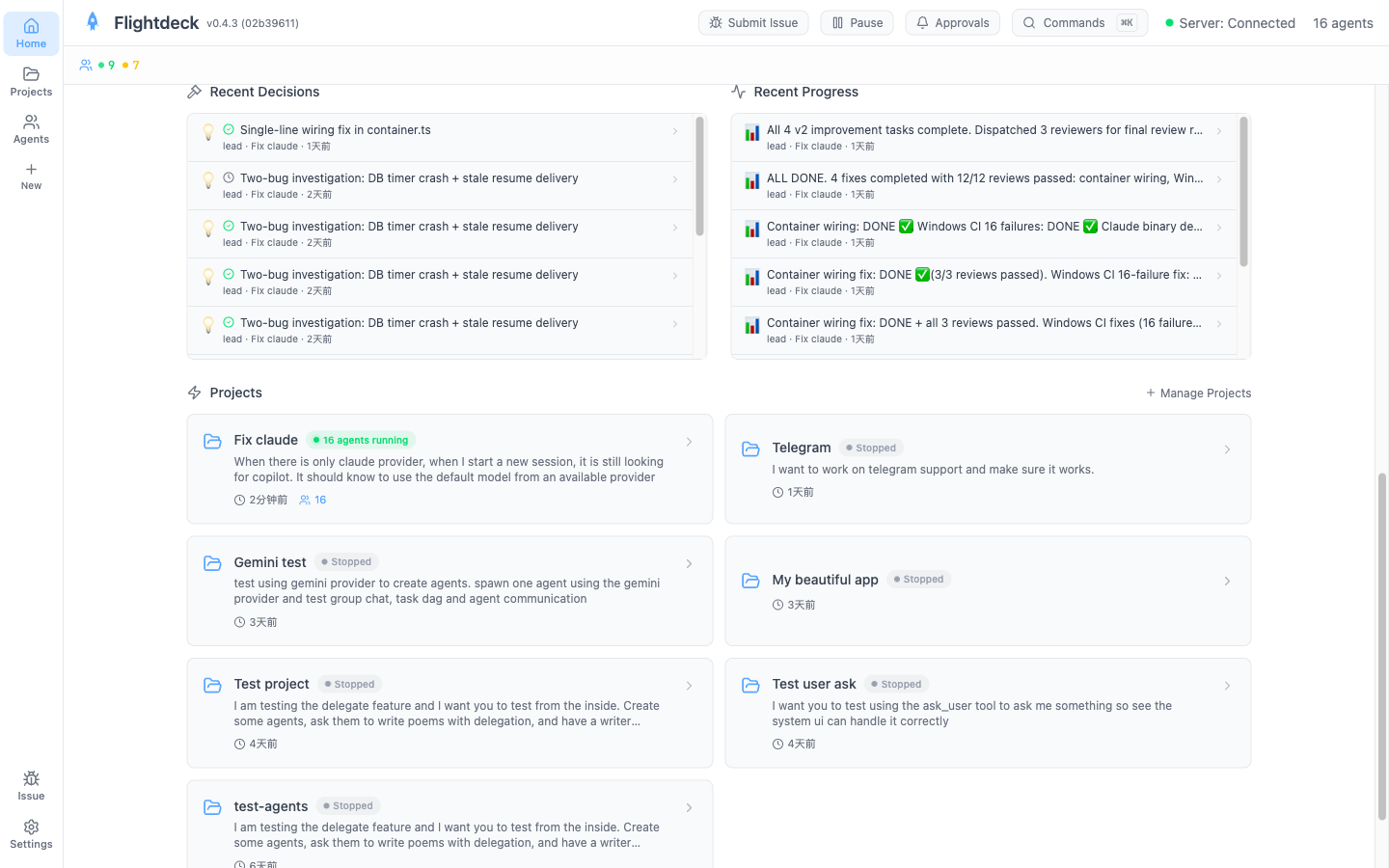
The Overview page is your health dashboard for the entire crew.
Reading the Visualizations
| Component | What It Shows | What to Look For |
|---|---|---|
| KeyStats | Active agents, tasks completed, token usage | Sudden drops in activity may indicate stalled agents |
| Agent Heatmap | Activity intensity per agent over time | Cold spots mean idle agents; hot streaks mean heavy work |
| Cumulative Flow | Tasks by status (pending → active → done) over time | Widening bands mean bottlenecks; steady flow means healthy progress |
| Milestones | Key completion points | Are milestones being hit? Is the team on track? |
Quick Health Check
- Are agents active? Check KeyStats for active count
- Is work flowing? Cumulative Flow should show tasks moving through statuses
- Any bottlenecks? If "active" band grows but "done" doesn't, something is stuck
- Token budget? Check cumulative token usage against your expectations
Understanding Team Collaboration via Timeline
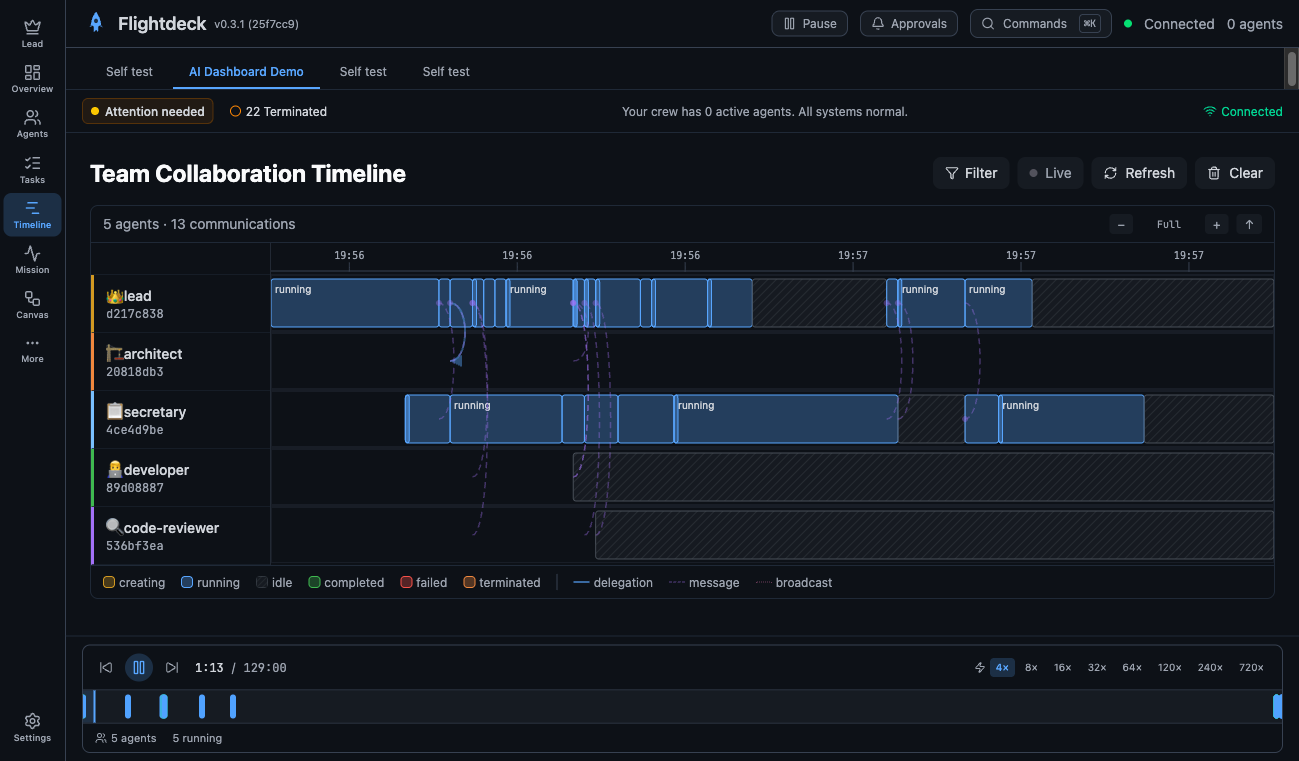
The Timeline is the most detailed view of what your agents did and when.
Reading the Gantt Chart
- Each swim lane is one agent (labeled on the left)
- Bars represent task segments — colored by status (active, idle, completed, errored)
- Arrows between lanes show communications (messages, delegations)
- Lock icons indicate file locks held by an agent
Navigation
| Action | How |
|---|---|
| Zoom in/out | Ctrl + mouse wheel, or +/- buttons |
| Pan horizontally | Shift + mouse wheel, or drag with mouse |
| Scroll vertically | Regular mouse wheel |
| Fit to view | Click the "Fit" button to reset zoom |
| Navigate lanes | Arrow keys (↑/↓) to move between agent lanes |
Session Replay
For completed sessions, use Session Replay to watch the session unfold:
- Open a historical session (or let it auto-switch to replay mode)
- The scrubber bar appears at the bottom
- Hit Play — agents appear, task bars grow, and messages fire in chronological order
- Use speed controls for fast review: 4× (default), 8×, 16×, 32×
- Drag the scrubber to jump to any point in time
Fast Review
Use 16× or 32× speed to quickly scan a multi-hour session in minutes. Switch to 1× or 2× when you spot something interesting.
Adjusting Oversight Levels
Control how much autonomy your agents have using the Oversight System.
Getting Started
- Go to Settings → Oversight
- The default tier is Balanced — routine work flows through, structural changes need approval
- Switch to Supervised for more control or Autonomous for hands-off operation
Recommended Approach
| Phase | Strategy |
|---|---|
| Starting out | Use Balanced (default) — learn what agents do before granting full autonomy |
| Comfortable | Switch to Autonomous — agents work independently, you review results |
| Critical project | Use Supervised — agents explain reasoning and ask before acting |
TIP
Add natural language custom instructions for project-specific guidance (e.g., "Always run tests before committing"). These are injected into every agent's system prompt.
For full documentation, see the Oversight guide.
Data Management
Keep your Flightdeck installation clean by managing old session data.
Cleaning Up Old Sessions
- Go to Settings → Data Management
- Review storage usage by project
- Delete individual sessions or bulk-delete old projects
- Timeline data, chat history, and keyframes are cleaned up together
Storage Monitoring
- Flightdeck uses SQLite — the database file grows with each session
- The Settings page shows current database size
- For long-running installations, periodically archive or delete completed projects
- Export important sessions before deleting them
WARNING
Deleting a project removes all its sessions, timeline data, and chat history permanently. Export first if you need the data.